
About the Assistant Leaves Tracker Feature
The “Leaves Tracker” feature allows assistants to request time off directly within their Workspace dashboard. Once filed, the leave request is automatically routed to your client and Account Lead for visibility and approval.
This guide outlines best practices and the correct process for filing, preparing for, and returning from a leave. While this feature streamlines leave filing, submitting a request does not guarantee approval.
Important Reminders
- Filing a leave request does not guarantee its approval. Wait for a confirmation email indicating that your client has approved or declined the request.
- For planned leaves, file at least (5) five business days in advance. Avoid same-day leave filing unless necessary. In the event of an emergency or unplanned absence, please submit the request as soon as possible or immediately inform your Account Lead.
- You will receive a confirmation email once your client responds. Clients can approve as paid or unpaid, or decline the request entirely.
- The feature doesn’t automatically file hour adjustments. If your leave affects your total hours, inform your Account Lead and follow the standard process by filling out the Assistant Hours Adjustment Form
- Leave requests only apply while your contract is active. If you’re offboarded before your leave date, the request becomes void.
- You can cancel a pending or approved leave in the Leaves Tracker if needed.
How to File a Leave (Step-by-Step)
File leave within your Workspace through the Teams page on the Assistant Workspace. Here’s how:
- Step1. Go to your client’s team on the Assistant Workspace.
- Step2. Under Today’s Schedule, you’ll find the Leaves Tracker section.
- Step3. Click the Calendar button.
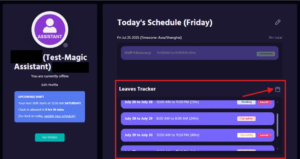
- Step4. Select the dates you’d like to request time off.
- Step5. In the Notes section, state the reason for your leave (e.g., sick leave, personal errand, wedding, etc.).
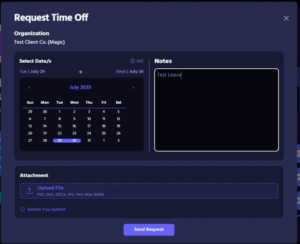
- Step6. If applicable, upload a file or document (e.g., medical certificate, wedding invite, etc.) in the Attachment section.
- Step7. Review the “Before You Submit” notice. Double-check all details are accurate.

- Step8. Click Send Request to submit your time-off request.
- Step9. Notify your Account Lead and client once you’ve filed your leave. They will receive the leave request via email for visibility.
- Step10. Once the client approves or denies your request;
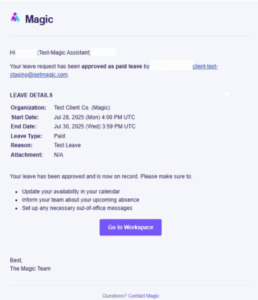
- You’ll receive an email with the client’s decision.
-
-
- You’ll be able to see the status on the Leaves Tracker on the Assistant Workspace.
-

How to Cancel a Leave Request
Sometimes plans change, and that’s okay. To cancel your request:
- Go to the Leaves Tracker
- Click Cancel beside the pending leave
- It will update to Cancelled status
Note: If your client terminates service before the leave date, the leave is also automatically cancelled.
Assistant Reminders Before and After Filing for Leave
- Before you file a leave request, make sure to message your client first if it’s a planned leave, coordinate any necessary adjustments or handoffs with them, and loop in your Account Lead if you anticipate needing help or temporary coverage.
- After you file your leave, follow up with a quick message to your client to confirm the request, clarify whether you’ll be completely offline or partially available, and offer a short handover if your leave will span several days.
Preparing for Your Leave
Time off is not just a personal decision; it also affects your client’s workflow. Here’s what responsible preparation looks like:
- Inform your client before or shortly after submitting the request
- Complete or delegate urgent tasks before your leave starts
- Update shared calendars or timelines
- Offer to provide a short handover message if the leave will disrupt regular work
- Notify your Account Lead if you need support in prepping your client
During Your Leave
- If your leave is less than one week, clients may choose to wait or tap into Magic’s 24/7 or support team
- If your leave is longer than one week, Magic may coordinate temporary assistance through the Assistant Shared pool or other resources
- For long leaves (e.g., maternity), a temporary replacement may be arranged, with clear documentation to help the transition
Note: Set expectations with your client if you’ll be completely unavailable and offline during your leave.
Returning From Your Leave
- Update your availability and schedule in Workspace
- Let your client know you’re back and ready to resume
- Follow up on any key tasks missed during your absence
- Communicate with your Account Lead if you need help catching up
- If applicable, coordinate with any temporary assistant you were paired with
Frequently Asked Questions
Do I still need to tell my client if I filed through Workspace?
Yes. While the system sends automatic notifications, it’s best practice to inform your client directly, especially for planned leaves. Clear communication builds trust and ensures alignment.
How far in advance should I file for planned time off?
At least five (5) business days before your intended leave date. This gives your client and Account Lead enough time to prepare and arrange support if needed.
What if it’s an emergency or I get sick unexpectedly?
Inform your Account Lead and client immediately. Then, file your leave request in Workspace and include a brief explanation in the Notes section.
Is my leave automatically approved after I file?
No. Your client must review and approve (paid or unpaid) or decline the request. You’ll receive a confirmation email once a decision is made.
Can I cancel a leave request after filing it?
Yes. Go to the Leaves Tracker in Workspace, locate the pending request, and click Cancel. Once confirmed, the status will update.
What happens if I don’t file my leaves through Workspace and just message my client instead?
Workspace filing is the default process for all assistants. If you and your client already have a clear and consistent system for filing leaves (e.g. via email, calendar, or a shared tool), and it works well for both sides, inform your Account Lead so we can disable this feature for your account to avoid confusion.
However, if no proper system is in place, Workspace filing should be used moving forward. If you’re unable to access Workspace due to exceptional circumstances, inform your Account Lead immediately and provide documentation (e.g. a screenshot or message) showing that you’ve informed your client and that the leave has been acknowledged and approved. Without this, the leave may not be considered valid and could lead to misalignment or pay issues.
I don’t have an Account Lead. Who should I contact?
If you don’t have an assigned AL, you can reach out to the Magic Support Team at [email protected] for assistance.
What kind of coverage is available while I’m on leave?
For short leaves (under one week), clients can request for 24/7 services. For longer leaves, temporary assistant support may be arranged, but only if there’s sufficient lead time and a clear handoff.
Will this affect my pay?
If your client approves the leave as paid, it will be billed as usual. If it’s approved as unpaid leave, you won’t get paid for that time. The confirmation email will indicate whether the leave is paid or unpaid.